Your First Hour With Munder Difflin 0.5.6: Onboarding From First Sign In to a Working Office
Your first hour with Munder Difflin 0.5.6: sign in, brief your orchestrator, hire a team, schedule work, connect Slack, start temps, then tour the Pro screens.
Your first hour of Munder Difflin onboarding goes like this: sign in, give your orchestrator one real job, hire a small team, set up work that starts without you, then learn the Pro screens. This guide is written for version 0.5.6 and follows the clock.
Munder Difflin is free and open source: a desktop app that runs a team of coding agents such as Claude Code, Codex and Gemini CLI on your own computer. Not installed yet? The install guide covers the download, the engines and every fix. For ideas on what to hand your agents, every agent on our own floor shows what ours do.
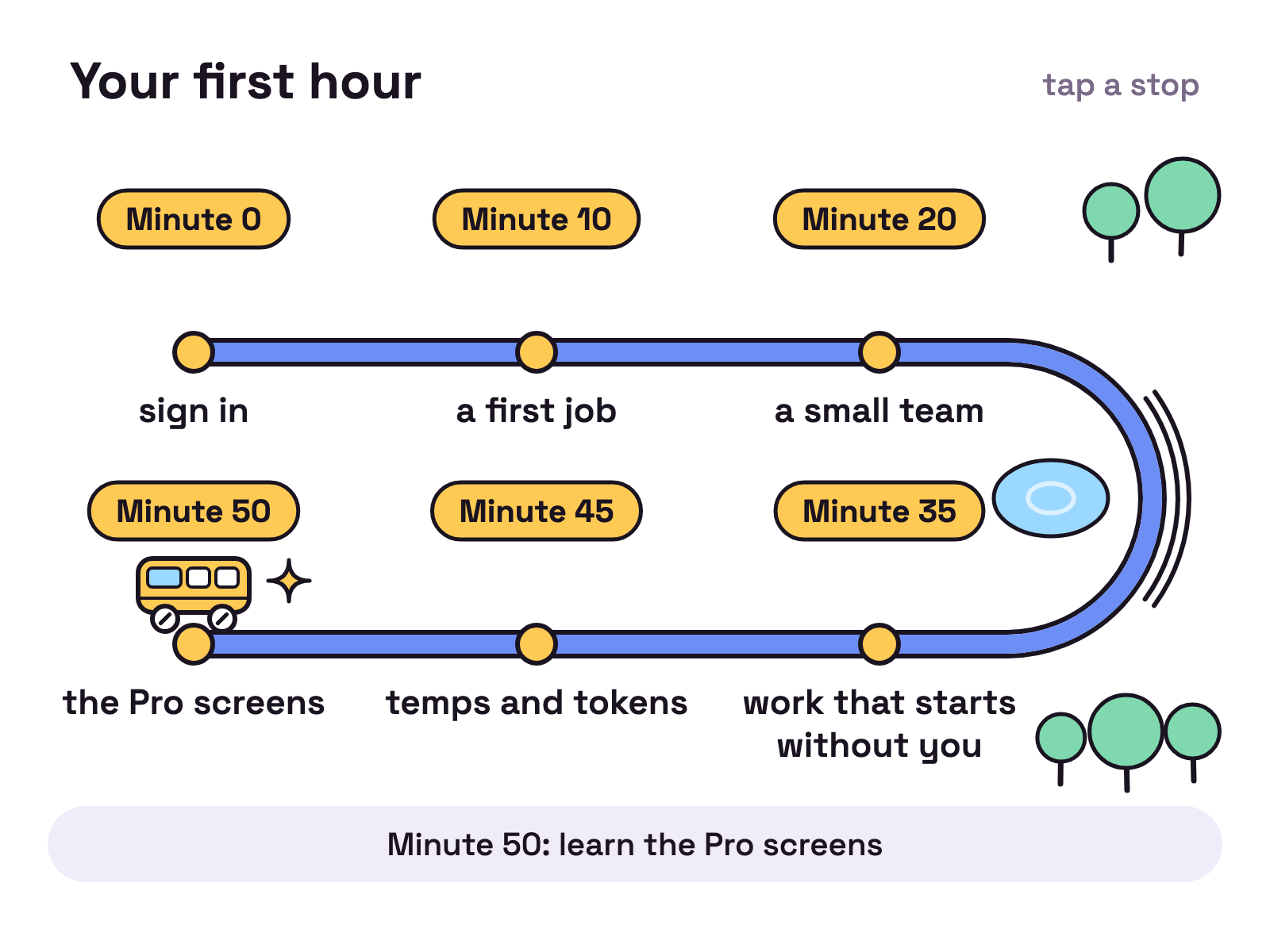
Minute 0: what do you need, and how do you sign in?
You need the app, one AI engine and an email address. The app needs nothing else installed, and it can install a missing engine for you later.
The first launch asks How are you using Munder Difflin? Pick On my own, then:
- Press Open browser to sign in. The browser does not open by itself.
- Sign in in the browser. The screen moves on by itself; if it does not, paste the code into Code from the browser and press Use this code.
- Name your workspace, Meet your orchestrator, then Open the workspace.
Next comes the Pro sales screen, Run your agents like a company. Until Saturday 24 October 2026, Pro is free for everyone as part of the launch: once you sign in, the app opens the Pro view with no licence and skips this screen. From Sunday 25 October, press Continue with the free version to reach the Classic view, or I have a licence key to turn on Pro. The steps through minute 45 work in both views; a few labels below are the Pro view’s.
Minute 10: how do you give your orchestrator a first job?
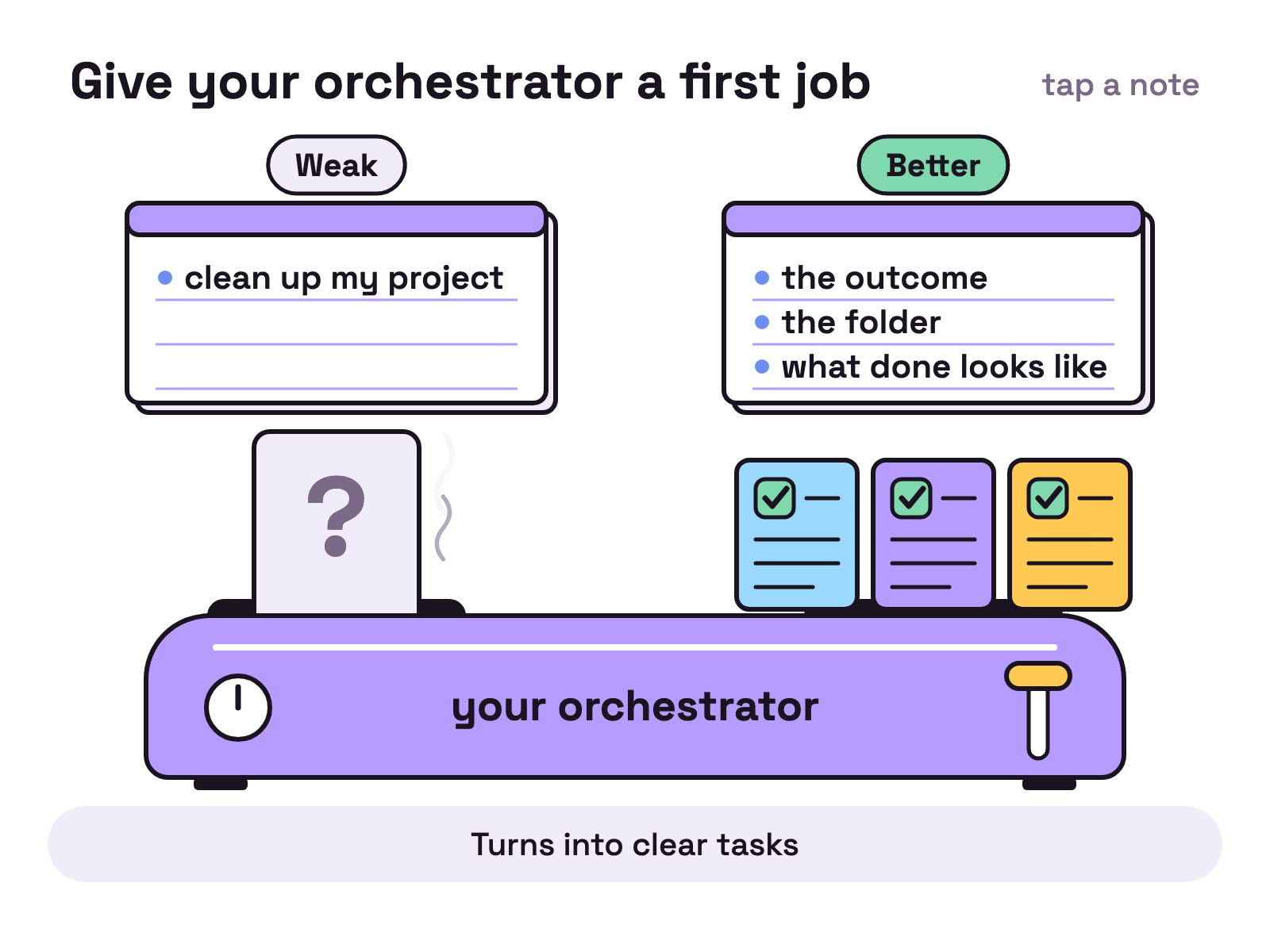
Brief him like a capable new hire: the outcome, the folder, and what done looks like. Your orchestrator is the one agent you talk to. He is called Michael until you rename him.
A vague brief gets a vague job. Compare:
- Weak: “clean up my project”
- Better: “In the folder notes-app, find every function with no test. Write the tests, run them, and give me a list of what failed and why. Do not change any function.”
Your orchestrator turns the brief into tasks and works them, hands them to an agent you added, or starts a temp. Once there is one, click any agent to watch its terminal. To read what it wrote, press IDE: an editor opens on the agent’s folder, with Changes to show what was edited and a Markdown preview for reports.
Minute 20: how do you hire a small team?
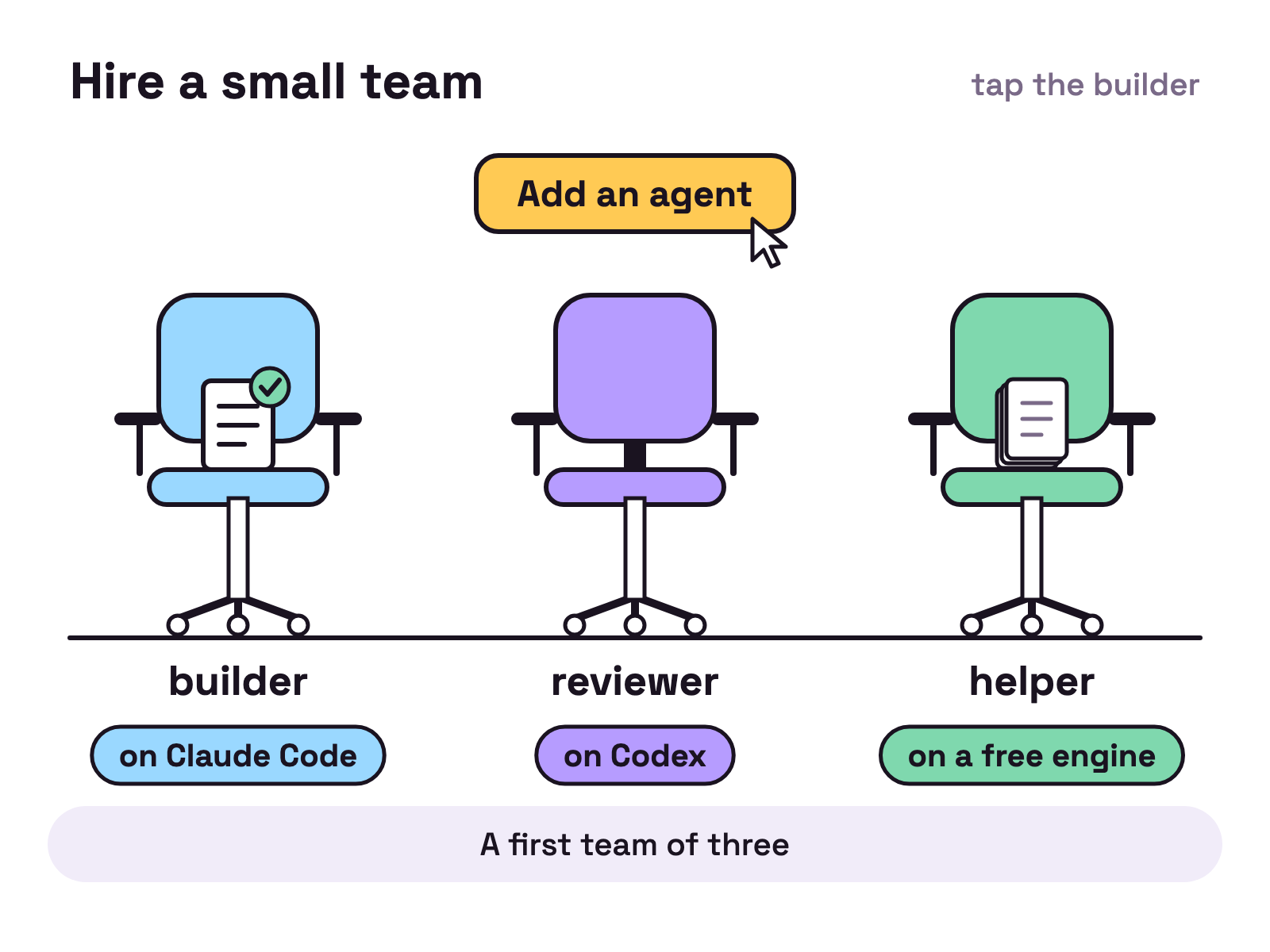
Press Add an agent. Pick a face, an engine, a model and the folder it works in. Each agent can run on a different engine, and that is the point: put your best model on the hard work and a cheaper one on the chores.
One split to try on day one:
- a builder on Claude Code, writing the feature
- a reviewer on Codex, reading every change the builder makes
- a helper on a free engine such as Antigravity, for docs and tidying
Each agent can also have its own token limit per period: Every 5 hours, Daily, Weekly or Monthly, with a cap, in the agent’s side panel under Budget. Leave it empty unless one agent needs its own. Sign every engine in before you hire on it, or the new agent cannot start; a Claude Code, Codex or Cursor agent stops at Sign in needed.
Our own floor has eleven kinds of seat: an orchestrator, mission control, a community lead, growth, motion graphics, research, a founder’s office, a scrum master, an engineering lead, builders, and a designer. You do not need eleven. You need a reviewer.
Minute 35: how do you set up work that starts without you?
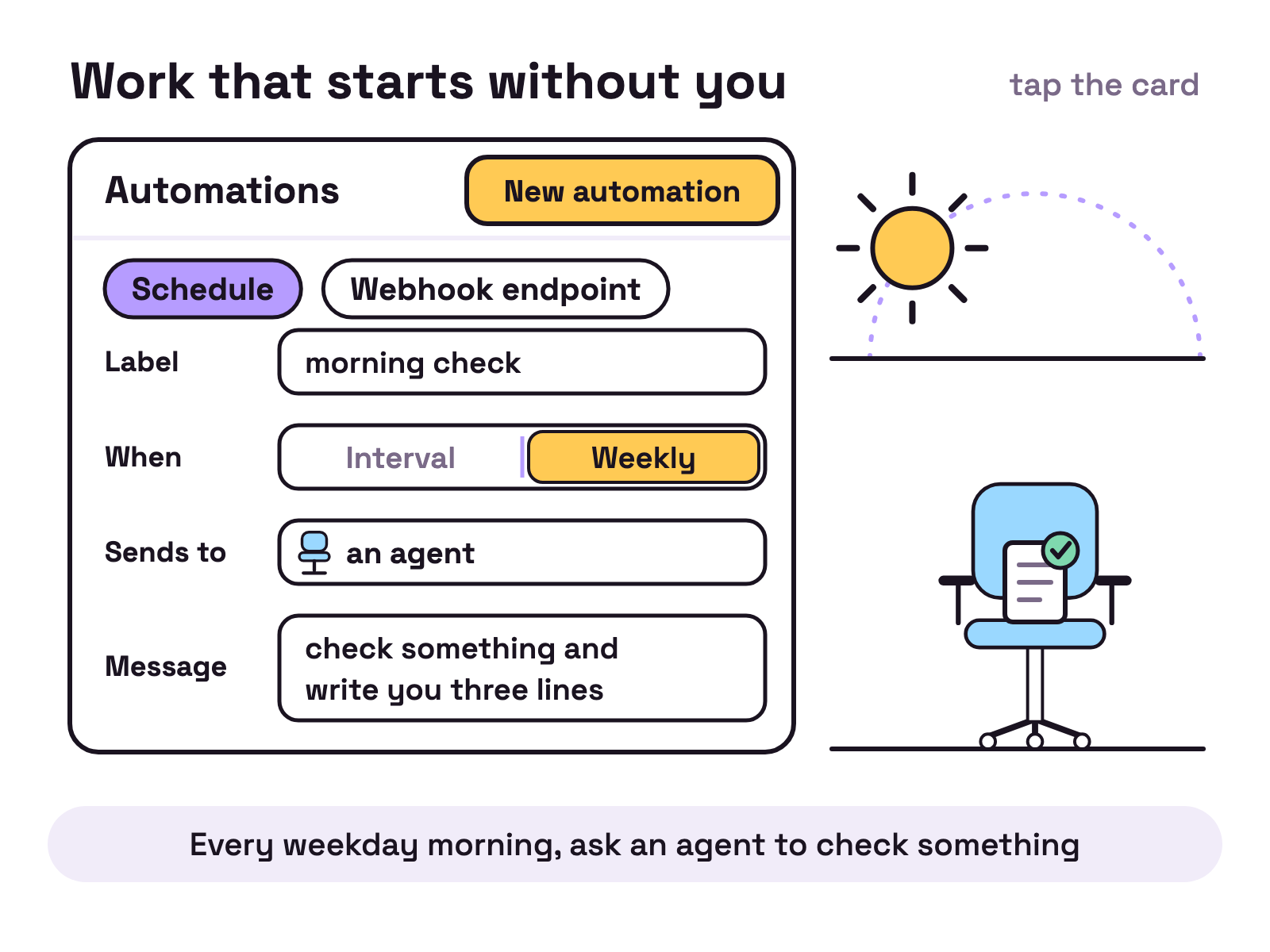
With an automation. In the Pro view open Automations and press New automation; in the Classic view the same things live under Triggers. Two kinds start there, a schedule and a webhook, and Slack is a third way in.
A schedule sends a message to an agent on a clock. Choose Schedule, then fill in four things: a Label, When (an Interval or Weekly), Sends to, and the Message, then press Save. The message is what the agent should do when it fires. A good first one: every weekday morning, ask an agent to check something and write you three lines.
A webhook lets any tool that can send a web request start work. Choose Webhook endpoint. A new endpoint starts switched off: choose how much you trust the caller, copy its address and its secret into the tool that will send, then turn it on and press Save. The sender must hold the secret.
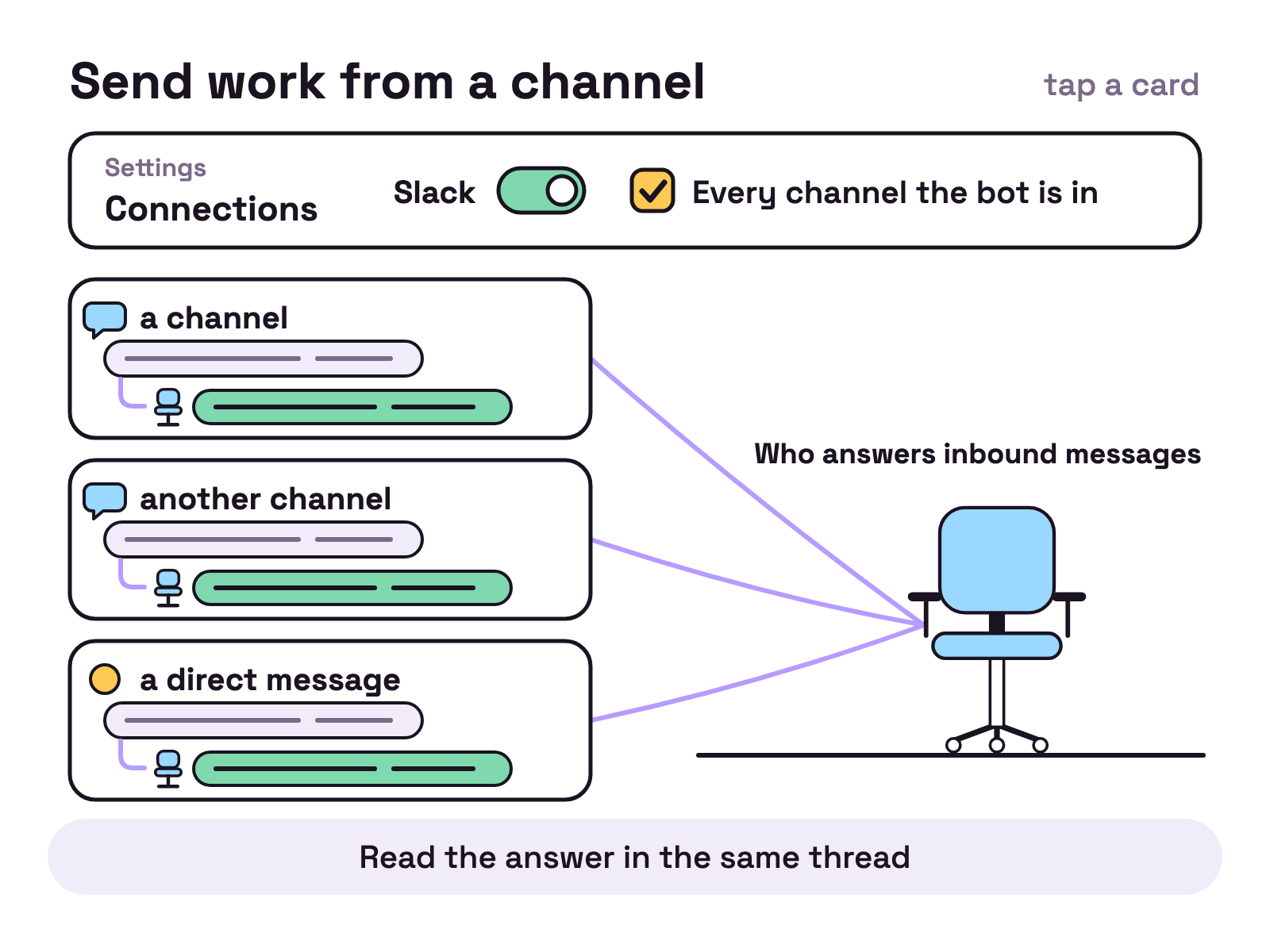
Slack lets people send work from a channel or a direct message and read the answer in the same thread. In the Pro view it is under Integrations; in Classic, under Settings, then Connections. Create the Slack app from a manifest: press Copy manifest under How to get these, then in Slack choose Create New App, From a manifest. The channel list opens on All channels, every channel the bot is in, and direct messages to the bot are answered too. Tick channels only to narrow it. You choose the agent under Who answers inbound messages. If Slack fails to start, it now comes back by itself. The Slack guide has the full setup.
Minute 45: what are temps, and how do you keep token use down?
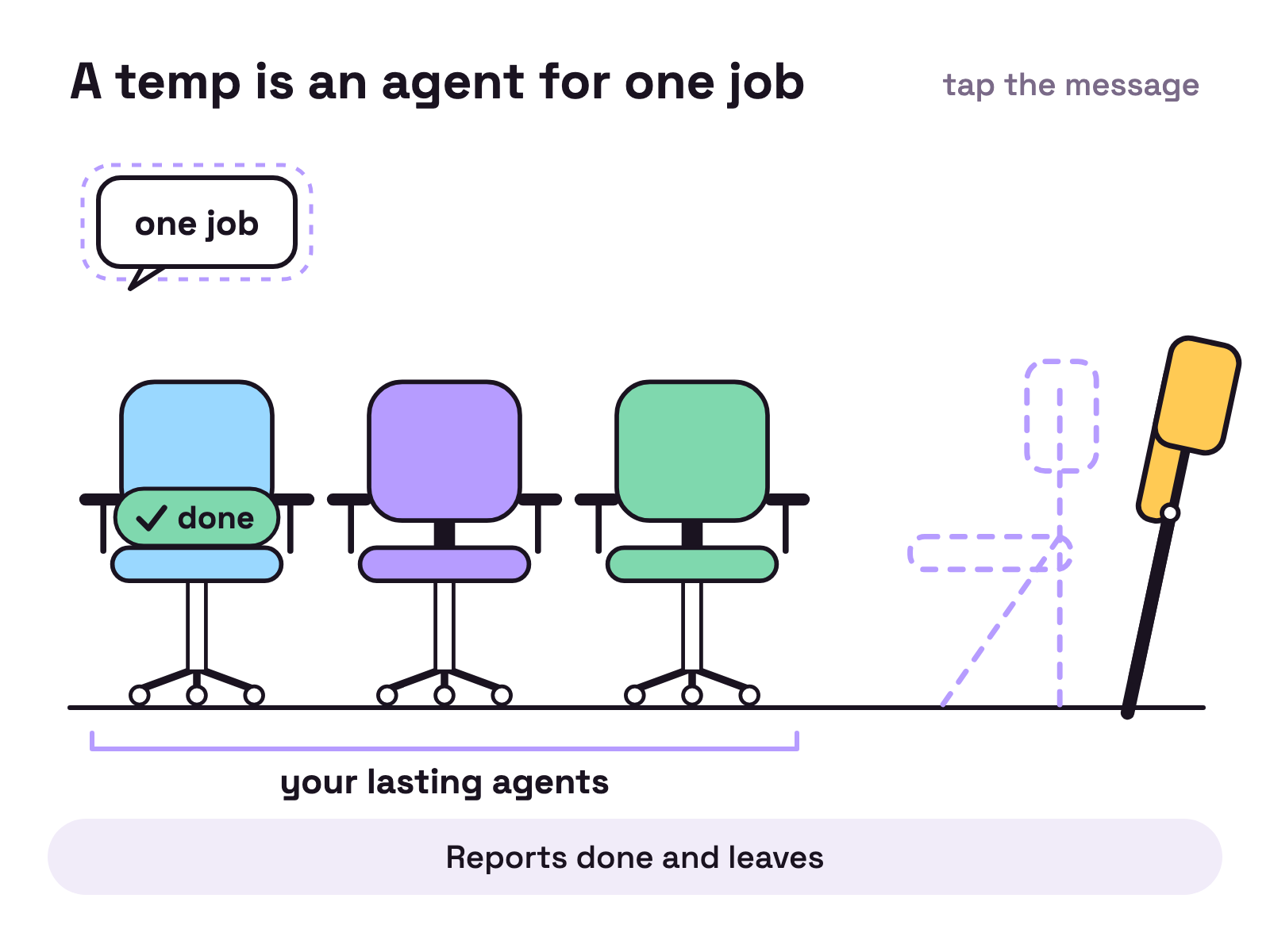
A temp is an agent for one job. It gets an objective, does the work, reports done and leaves. There is no button for one. You ask: “Michael, start a temp to rename every file in this folder to lower case.”
Three things changed in 0.5.6:
- Any lasting agent can start a temp, not only the orchestrator. A temp cannot start a temp.
- A temp can answer inbound messages. Wherever you pick who answers (Slack, a teammate, a webhook, a schedule’s Sends to, the Stapler’s Send captures to), the list now offers A temp and A temp, clone of one of your agents.
- You set the limits. In the Pro view, on the orchestrator’s Budget & breaker tab, Temps per agent runs from 0 to 4 and Max temps at once caps how many temps run in the whole office at the same time. At 0, agents cannot start temps.
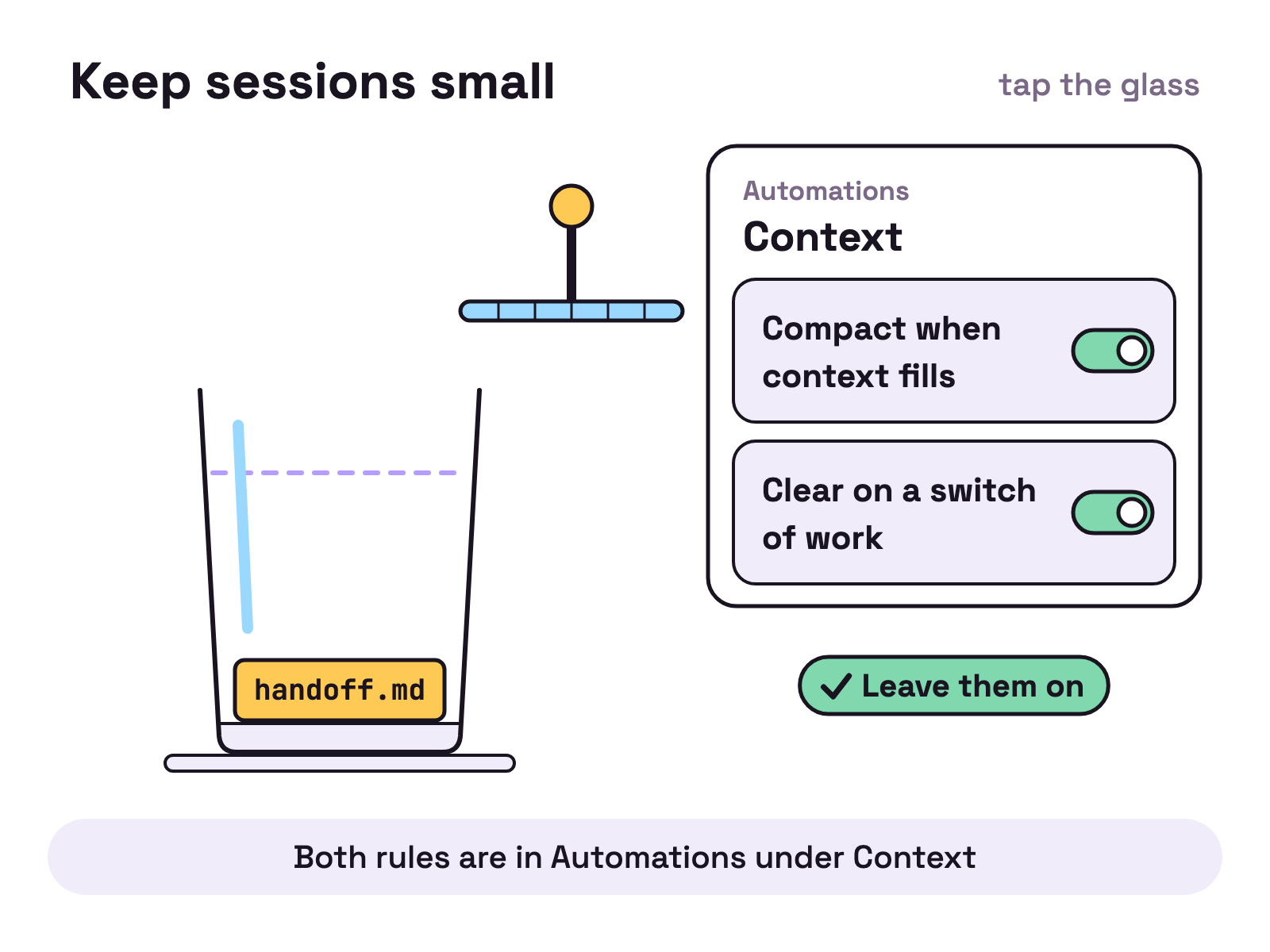
Tokens are the other limit. Long sessions fill an agent’s context, and a full context is slow and uses up your plan’s limits faster. 0.5.6 ships with defaults that deal with it:
- Compact when context fills summarises a long session and carries the summary forward.
- Clear on a switch of work clears the session when an agent moves to different work and the session has run for 60 minutes. A file called
handoff.mdin the agent’s folder carries the thread across, so the next session knows where the last one stopped. - No hourly standup. A new install no longer pings the orchestrator every hour.
The first two are rules in Automations under Context (in the Classic view, the Triggers tab). Leave them on.
Minute 50: what does the Pro view add?
One window with a sidebar, and a screen for each part of the office. The switch in the title bar moves between Classic and PRO; without a licence it reads TRY PRO.
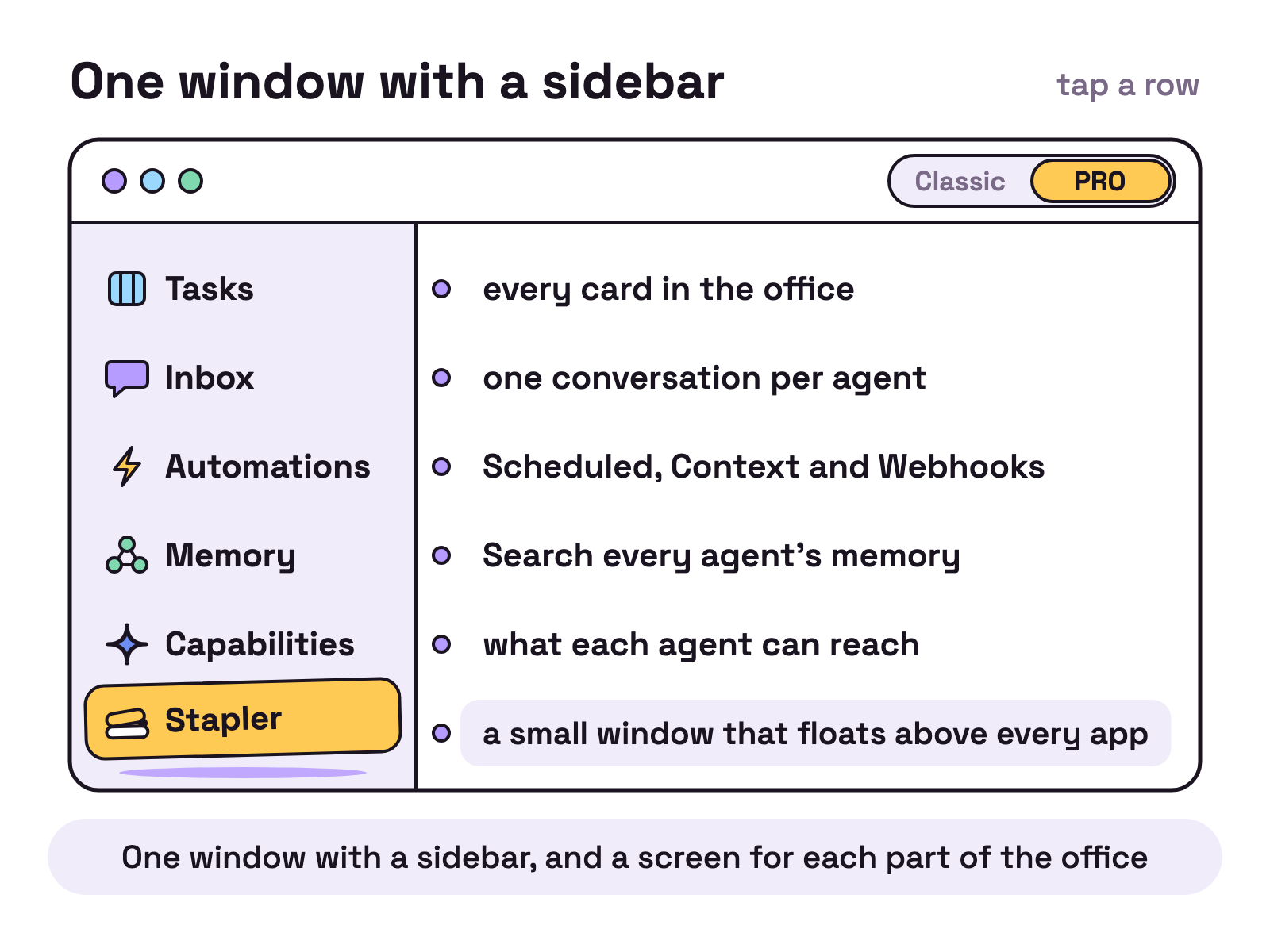
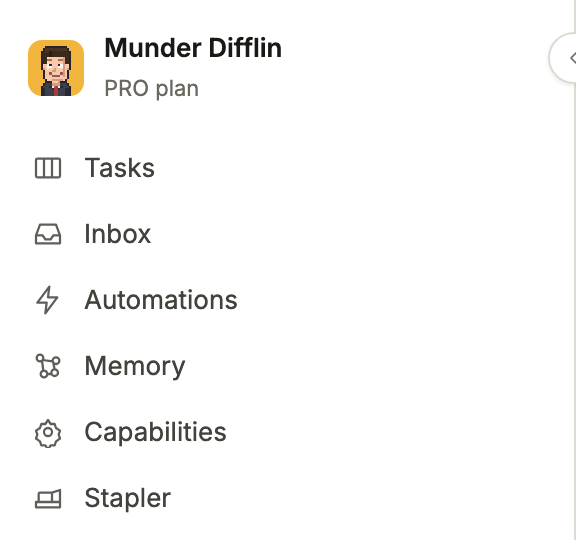
Tasks is every card in the office, as a Board, a List or Cards. The habit that pays: start the day on the Asks me filter, which shows only the cards waiting on you. (It is a filter in Tasks; Ask me in the Inbox, below, is where you answer.) You can drag cards between columns. Nothing changes for your team until you send your edits, and then your orchestrator makes the change.
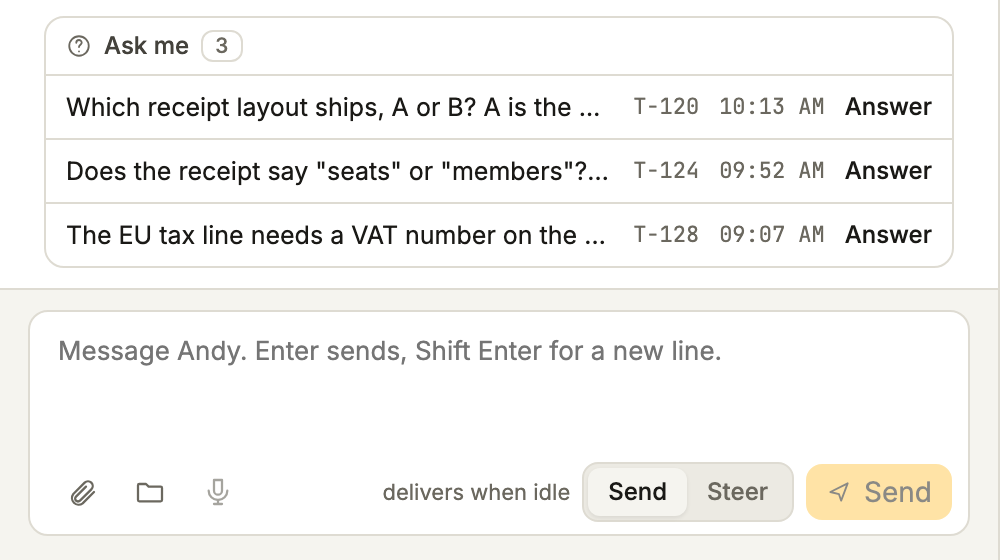
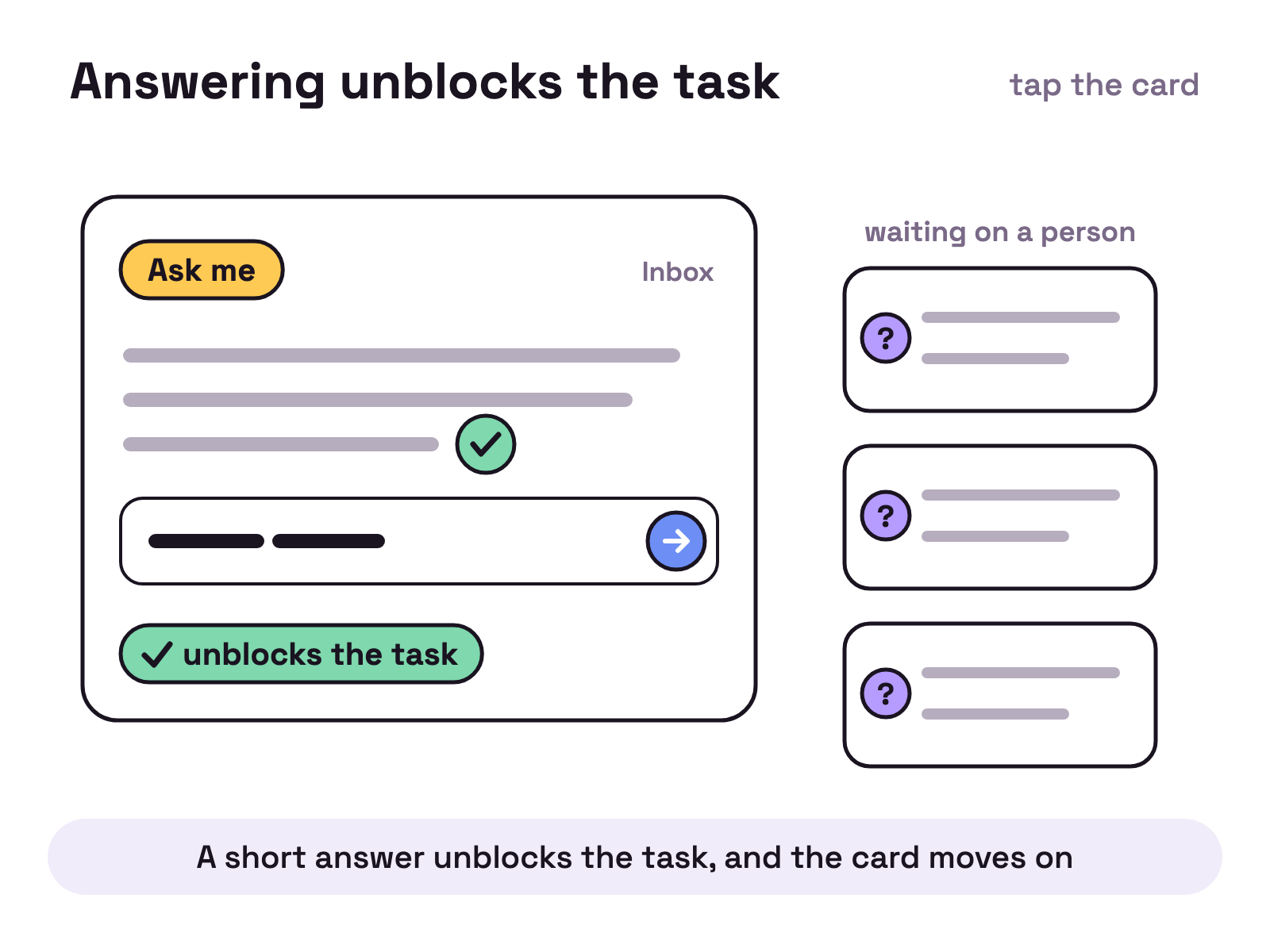
Inbox holds one conversation per agent, plus Ask me, Slack and Webhooks. Ask me is the list of questions waiting on a person. Answer in one line; answering unblocks the task. This is the screen that keeps an office moving while you do something else.
Automations is the list you met at minute 35, with filters for Scheduled, Context and Webhooks, Each schedule shows when it Last fired, each webhook lists its Recent arrivals, and History opens the Inbox, where webhook messages are answered.
Memory lets you Search every agent’s memory at once and see the result as a Graph or a List. Use it before you brief: if an agent already solved this last week, the note is here. Narrow a search with Whose memory and Kind.
Capabilities is a marketplace of 2,347 MCP servers, skills, plugins and tools from the public list HarnessMD/awesome-agent-capabilities. We reviewed 622 of them; the rest read Listed, not reviewed by us and have no Install button. A merged change to the list reaches the app with no new release.
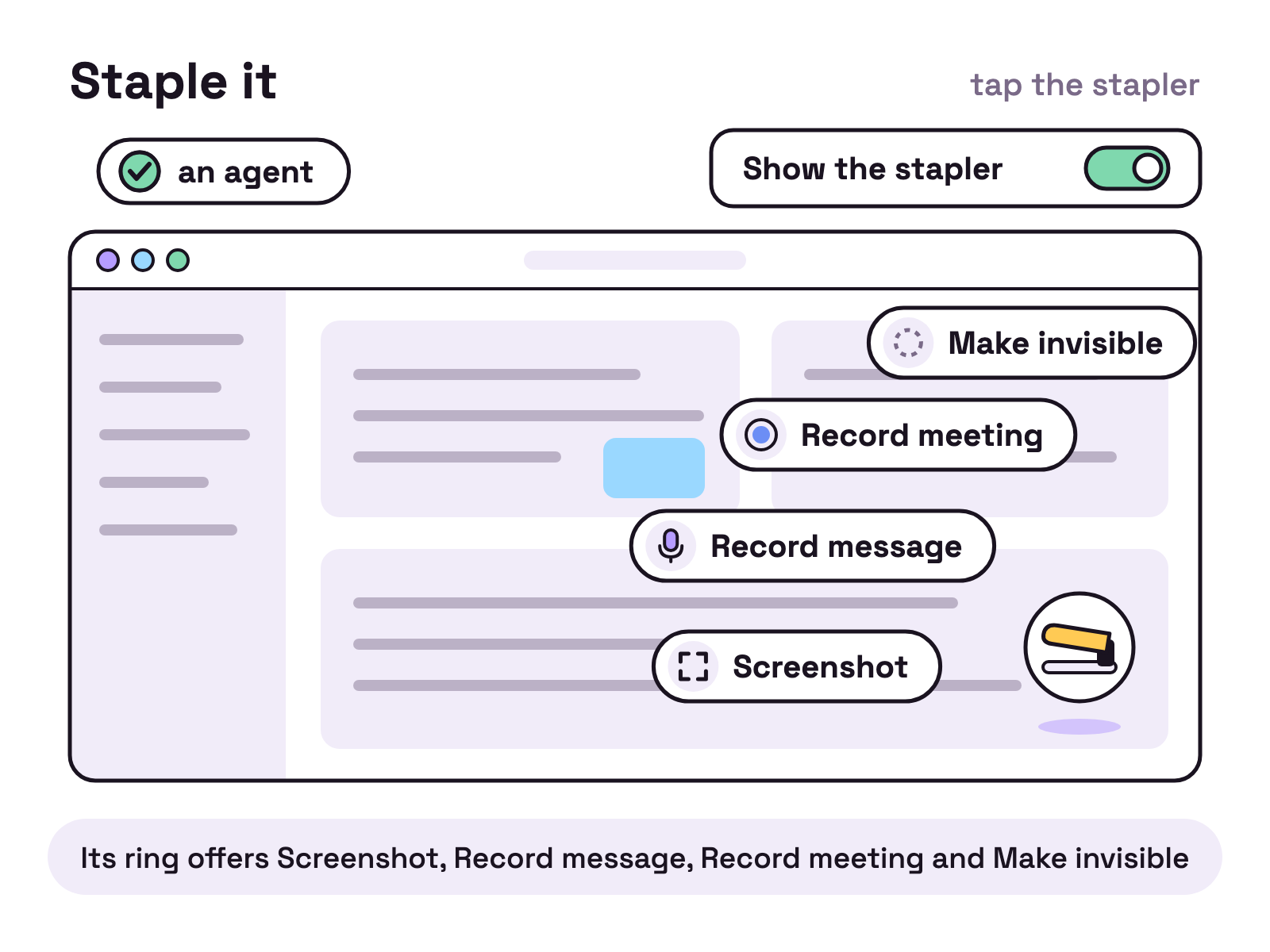
The Stapler is a small window that floats above every app. On the Stapler screen, turn on Show the stapler, then click it for its ring:
- Screenshot captures a region of the screen and sends it, with a note, to the agent you pick under Send captures to.
- Record message takes a spoken message and shows you the transcript before it goes.
- Record meeting records the microphone into a folder of transcripts, one folder per meeting.
- Make invisible hides the Stapler from screen sharing and recordings.
A fifth button, Computer use, reads Coming soon and cannot be turned on yet.
The habit: when you see a bug in any app, do not describe it. Staple it.
Minute 58: what about accounts and teams?
Your account sits in the profile menu. Sign out asks you to press again, so you cannot do it by accident. Switch to Teams opens one sheet for joining a team with an invite code or generating one. In 0.5.6 your office talks to your teammates’ offices: one plain chat per teammate, you choose who answers each one, and files and folders go as a link with a password, for one download.
What trips people up in the first hour?
Eight things, all normal.
- The paywall comes first. Press Continue with the free version to reach the app.
- The sign in browser does not open by itself. Press the button and sign in there. If the screen does not move on by itself, paste the code.
- “Installs on first start” still needs you. The engine installs when you press Install.
- An agent reads “looping”. The circuit breaker warns an agent that repeats itself or spends fast. That is the app working, not a crash.
- A session cleared itself. See the token rules above.
handoff.mdhas the thread. - Auto mode decides how much agents ask. On, agents act on their own and ask only when blocked. Off, they ask before each tool call. In the Pro view it is on the orchestrator’s Budget & breaker tab; in the Classic view, Settings, then Autonomy & Budgets. It applies when an agent next starts.
- Many agents on 8 GB of memory run slowly. Run fewer at once.
- On Linux with Wayland, dictation into other apps is refused. It needs X11.
What should you do after the first hour?
Add one seat at a time. A reviewer first, then one scheduled job, then a scout. Every agent on our own floor has starter messages for four seats. How the orchestrator routes work explains what your orchestrator does with your briefs, and build your personal AGI turns the office into something that briefs you each morning.
FAQ
How long does it take to get Munder Difflin running?
Setup is four short steps when an AI engine is already installed and signed in: download, sign in, name your workspace and your orchestrator. The rest of the hour goes on a first job, a small team and the first work that starts without you.
Do I need Pro for this first hour?
No. Agents, schedules, the context rules, webhooks, Slack and temps are in both views. The Pro view adds one window with screens for Tasks, Inbox, Automations, Memory and Capabilities, plus the Stapler, a small window above every app. Until Saturday 24 October 2026, Pro is free for everyone as part of the launch.
What is a temp?
A temp is a short lived agent started for one job. The orchestrator or any lasting agent can start one, and the app can start one to answer an inbound message. It does the job, reports done and leaves.
Can one office mix Claude Code, Codex and other engines?
Yes. Each agent picks its own engine and model when you add it, and can have its own token limit per period. Claude Code and Codex use their own sign in; OpenCode, Crush, Pi and Qwen take a key.
Does the office keep working when I close my laptop?
No. Agents, schedules, Slack and webhooks all run on your own computer, so they stop when the app closes or the laptop sleeps.
Why did my agent's session clear itself?
That is a default in 0.5.6 that saves tokens. When an agent's work switches and its session has run for 60 minutes, the app clears the session, and a handoff file in the agent's folder carries the thread across.